Files
Files attach documentation to the things it documents. A P&ID hangs off the line it describes; a datasheet off the pump; an inspection photo off the vessel it was taken in. Attached this way, documents are the records layer of a digital twin.
The point is not storage, you already have somewhere to put files. The point is that documentation becomes reachable from the asset, instead of requiring somebody to know which folder it was filed in.
What files are for here
Typical material:
- P&IDs and network diagrams, attached to the line, area or network segment
- Datasheets and manuals, attached to the equipment
- Inspection reports and photos, attached to the asset inspected, and datable against the event that recorded the inspection
- Certificates and compliance documents, attached to the asset or the obligation
- Calibration records, attached to the instrument
The value is in the last word of each line. Somebody investigating a pump can reach its datasheet from the pump. Somebody preparing a compliance submission can reach the certificates from the obligation. Attaching a document to the thing it describes is contextualization, the same activity that links a signal to its instrument.
Uploading
Files live in a folder tree. Create folders that mirror how people look for documents, usually by area or by document type, rarely by upload date.
You can type the folder path directly rather than clicking through it.
Which container it belongs to, and therefore who can see it. Do set one: a file or folder left with no data set is readable by every authenticated user, unlike resources, series and events. Entities without a data set →
The assets this document is about. This is the field that makes the file findable from the model, the one worth not skipping.
Each uploaded file records a checksum, its size, its type, when it was created and last modified, and the source system's own created and updated dates where those are known. The checksum is what lets you prove a document has not changed since it was filed.
Organising
| Action | What it does |
|---|---|
| Rename | Changes the file or folder name |
| Move | Moves it to another folder. Warns if something already exists at the destination |
| Set dataset | Reassigns the access boundary |
| Set related resources | Changes which assets the file is attached to |
| Copy path | Copies the full path, useful for referring to a document elsewhere |
| Download | Retrieves the file |
| Update file | Edits the entry's details: name, description, metadata, related resources, data set. File contents cannot be replaced; upload a new file |
Setting a data set on a folder also applies it to everything inside that does not already have one, automatically. That is the fastest way to bring an uploaded document tree under the right access boundary in one action, and worth knowing before you do it.
Files can also be browsed grouped by data set, which is the view administrators usually want when reviewing who can see what.
Deleting and restoring
Deleting a file moves it to a trash rather than destroying it. The Deleted files tab lists what has been removed and when, and offers Restore.
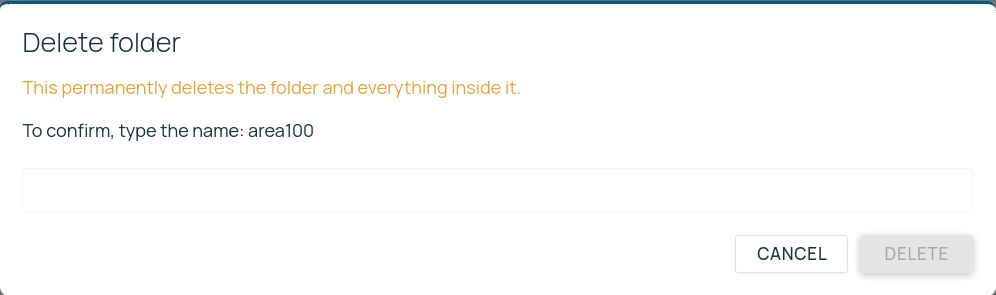
Deleting a folder is different and the console says so plainly: it permanently deletes the folder and everything inside it, and asks you to type the folder's name to confirm. Treat that confirmation as the safety mechanism it is.
Finding files
The search box covers file names, and the filter panel narrows by folder, data set and type. The other route, often the better one, is from the model: open a resource and see the files related to it.
That is the difference this makes. In a conventional document store you search for the document. Here you can start from the equipment, which is usually what you actually have in front of you.
Where agents help
Documents are the least structured thing in the platform and the most rewarding for an agent to read. A datasheet holds the design values somebody will otherwise retype; an inspection report holds findings that belong in the event log; a drawing holds connections that belong in the graph.
An agent with API access can read what is attached to a piece of equipment and propose the structured version: a series for a design limit, an event for a finding, a relationship for a connection. The document stays as the source, and the model gains something queryable. Building AI agents →
- Building AI agents: agents that read the documents attached to your equipment
- Data sets: the access boundary files inherit
- The resource graph: attaching files to the assets they document
- Capital project handover: landing a full documentation package at handover
- Data lifecycle: retention and storage housekeeping